> ## Documentation Index
> Fetch the complete documentation index at: https://docs.prompteus.com/llms.txt
> Use this file to discover all available pages before exploring further.
# Prompteus API Keys
> Learn how to manage your Prompteus API keys to authenticate requests to your Neurons.
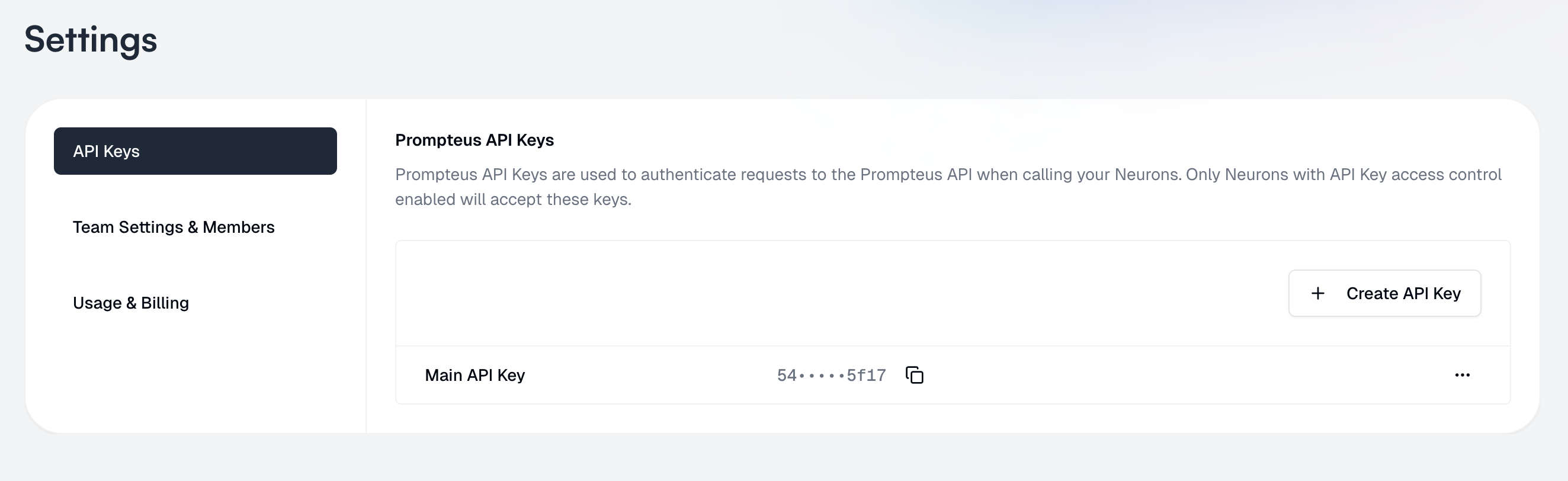
Prompteus API Keys are used to authenticate requests to the Prompteus API when calling your Neurons. Only Neurons with API Key access control enabled will accept these keys.
## Managing API Keys
 ### Creating API Keys
1. Navigate to the Settings page
2. Select "[API Keys](https://dashboard.prompteus.com/settings/api-keys)" from the left sidebar
3. Click "Create API Key"
4. Give your key a friendly name for easy identification
You will be able to see the API key, even later. Be careful to not expose it to others, and revoke keys that are no longer needed or compromised.
### Using API Keys
To use an API key with your Neurons, you'll need to:
1. Enable API Key authentication in your [Neuron's access control settings](/neurons/settings/access-control#api-key-authentication)
2. Include the API key in your requests as described in the [authentication guide](/neurons/settings/access-control#using-api-keys)
### Best Practices
1. **Key Management**
* Use different keys for different environments (development, staging, production)
* Rotate keys periodically for security
* Delete unused keys
2. **Security**
* Never share API keys or commit them to version control
* Use environment variables to store keys in your applications
* Monitor key usage for unusual patterns
### Creating API Keys
1. Navigate to the Settings page
2. Select "[API Keys](https://dashboard.prompteus.com/settings/api-keys)" from the left sidebar
3. Click "Create API Key"
4. Give your key a friendly name for easy identification
You will be able to see the API key, even later. Be careful to not expose it to others, and revoke keys that are no longer needed or compromised.
### Using API Keys
To use an API key with your Neurons, you'll need to:
1. Enable API Key authentication in your [Neuron's access control settings](/neurons/settings/access-control#api-key-authentication)
2. Include the API key in your requests as described in the [authentication guide](/neurons/settings/access-control#using-api-keys)
### Best Practices
1. **Key Management**
* Use different keys for different environments (development, staging, production)
* Rotate keys periodically for security
* Delete unused keys
2. **Security**
* Never share API keys or commit them to version control
* Use environment variables to store keys in your applications
* Monitor key usage for unusual patterns