> ## Documentation Index
> Fetch the complete documentation index at: https://docs.prompteus.com/llms.txt
> Use this file to discover all available pages before exploring further.
# Team Settings
> Manage your organization profile and team members in Prompteus.
[Team Settings](https://dashboard.prompteus.com/settings/team) allow you to manage your organization's profile and team members. This includes updating your organization's information, managing your team's composition, and controlling member access.
## Organization Profile
 ### Managing Organization Details
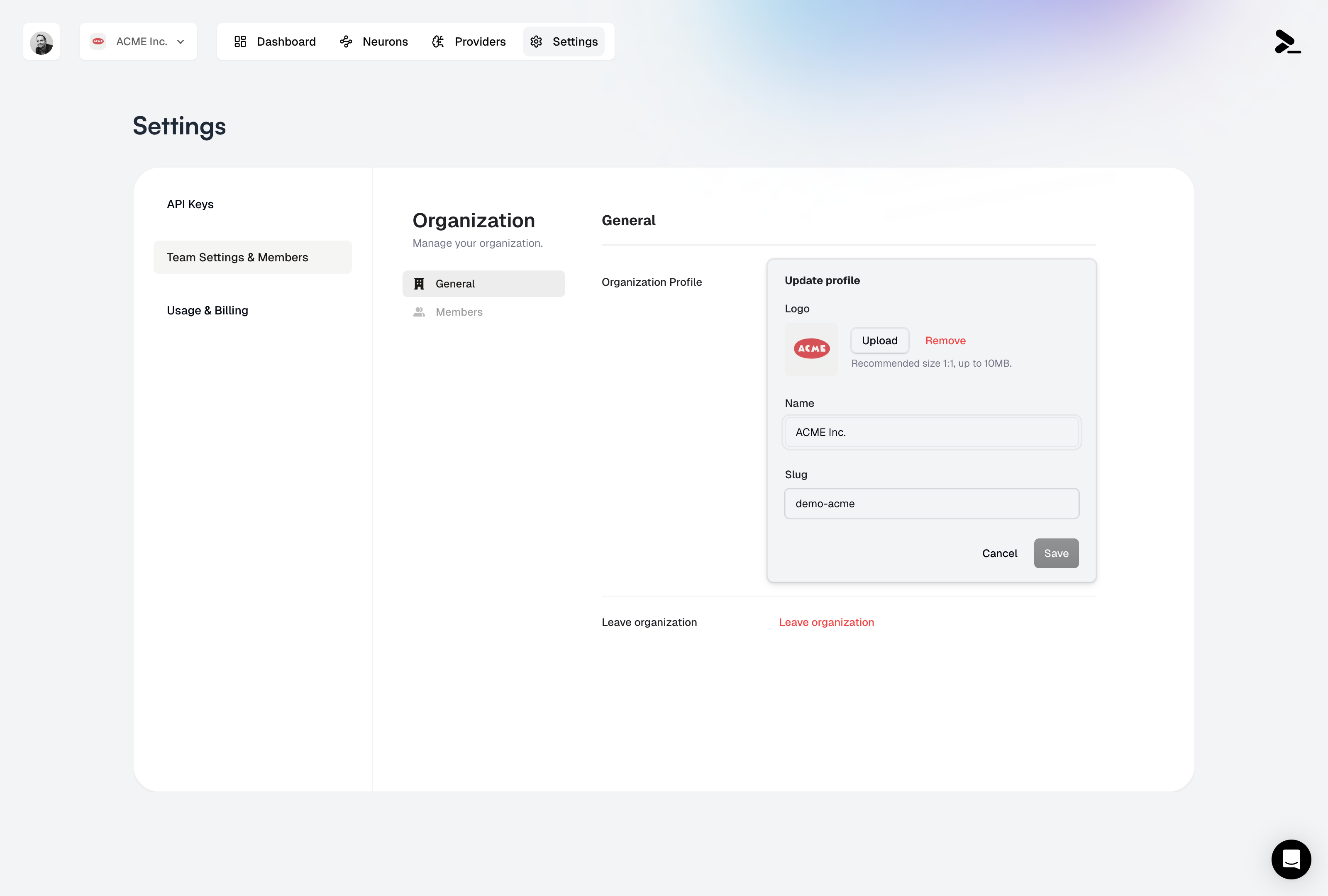
Your organization's profile contains essential information that identifies your team and is used throughout Prompteus. Here's what you can configure:
* **Organization Name**: This is your team's display name, visible to all team members and used in the dashboard
* **Organization Slug**: A unique identifier used in API URLs and system references. This is a critical setting as it's used in all your Neuron API endpoints
* **Logo**: Upload your organization's logo to personalize your dashboard (recommended size 1:1, up to 10MB)
The organization slug is used in all your Neuron API endpoints. Changing it will update all your API URLs, so make sure to update your applications accordingly.
## Team Management
The team management interface provides a comprehensive view of your organization's members. Here you can:
* View all team members and their current status
* See when each member joined the organization
* Manage member roles and permissions
* Remove members when they no longer need access
* Search and filter members to quickly find specific team members
### Inviting Members
Adding new team members is a simple process:
1. Click the "Invite" button in the team management interface
2. Enter the member's email address
3. Select their role from the available options
4. Send the invitation
Team member seats are billed monthly. The first member is free, and additional members are \$10/member/month. You can adjust the number of seats in the [billing settings](/features/settings/billing).
### Member Roles
Prompteus provides two distinct roles to manage team member permissions:
* **Admin**: Has full access to all organization settings and Neurons, including the ability to invite new members and modify organization details
* **Member**: Can create and manage Neurons, but cannot modify organization settings or invite new members
We're working on adding more roles in the future to provide finer-grained access control.
## Best Practices
### Organization Management
Maintaining a well-organized team structure is essential for efficient operation:
* Keep your organization slug consistent to avoid breaking API integrations
* Use a recognizable logo to help team members quickly identify your organization
* Document any slug changes to ensure all team members are aware of updates
### Team Management
Effective team management helps maintain security and efficiency:
* Regularly review team member access to ensure only active members have access
* Remove inactive members to maintain accurate billing and security
* Maintain clear role assignments to prevent confusion about permissions
## Related Resources
* [Billing Settings](/features/settings/billing) - Manage team member seats and billing
* [API Keys](/features/settings/api-keys) - Manage authentication for your Neurons
### Managing Organization Details
Your organization's profile contains essential information that identifies your team and is used throughout Prompteus. Here's what you can configure:
* **Organization Name**: This is your team's display name, visible to all team members and used in the dashboard
* **Organization Slug**: A unique identifier used in API URLs and system references. This is a critical setting as it's used in all your Neuron API endpoints
* **Logo**: Upload your organization's logo to personalize your dashboard (recommended size 1:1, up to 10MB)
The organization slug is used in all your Neuron API endpoints. Changing it will update all your API URLs, so make sure to update your applications accordingly.
## Team Management
The team management interface provides a comprehensive view of your organization's members. Here you can:
* View all team members and their current status
* See when each member joined the organization
* Manage member roles and permissions
* Remove members when they no longer need access
* Search and filter members to quickly find specific team members
### Inviting Members
Adding new team members is a simple process:
1. Click the "Invite" button in the team management interface
2. Enter the member's email address
3. Select their role from the available options
4. Send the invitation
Team member seats are billed monthly. The first member is free, and additional members are \$10/member/month. You can adjust the number of seats in the [billing settings](/features/settings/billing).
### Member Roles
Prompteus provides two distinct roles to manage team member permissions:
* **Admin**: Has full access to all organization settings and Neurons, including the ability to invite new members and modify organization details
* **Member**: Can create and manage Neurons, but cannot modify organization settings or invite new members
We're working on adding more roles in the future to provide finer-grained access control.
## Best Practices
### Organization Management
Maintaining a well-organized team structure is essential for efficient operation:
* Keep your organization slug consistent to avoid breaking API integrations
* Use a recognizable logo to help team members quickly identify your organization
* Document any slug changes to ensure all team members are aware of updates
### Team Management
Effective team management helps maintain security and efficiency:
* Regularly review team member access to ensure only active members have access
* Remove inactive members to maintain accurate billing and security
* Maintain clear role assignments to prevent confusion about permissions
## Related Resources
* [Billing Settings](/features/settings/billing) - Manage team member seats and billing
* [API Keys](/features/settings/api-keys) - Manage authentication for your Neurons